Chinese brands dominate new global EV sales charts for August
The Tesla Model Y still tops the tables
Battery EVs are outselling plug-in hybrids
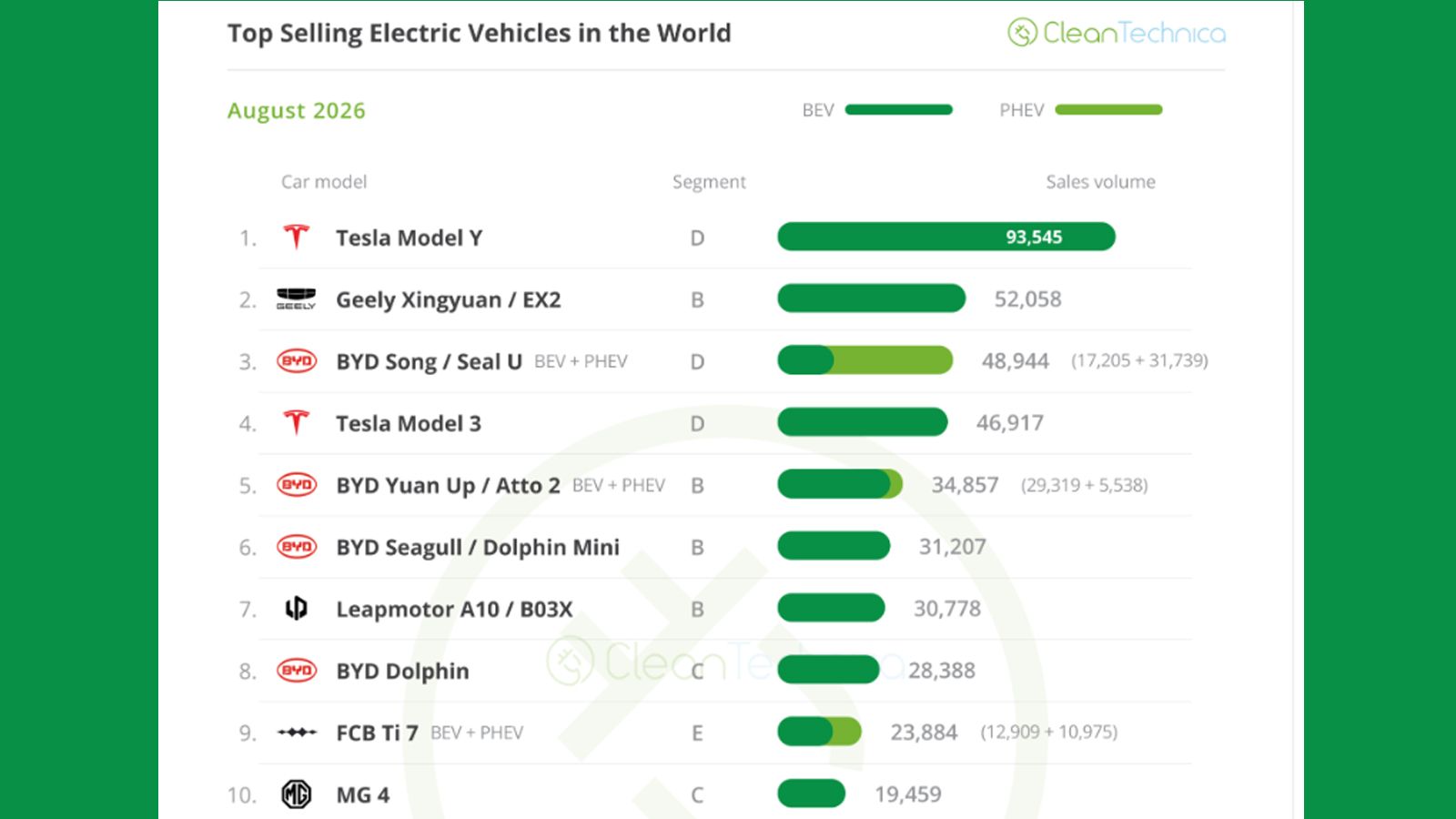
The global EV sales figures are in — and while Tesla’s Model Y still dominates the list of August’s best-selling pure electric vehicles, models from Chinese automakers Geely and BYD are closing in fast.
According to CleanTechnica’s detailed report on the electric and plug-in hybrid market, the Geely Xingyuan (also badged EX2 in markets outside of China) and the BYD Song (Seal U) are rapidly catching up with Tesla’s best-selling electric crossover.
In fact, Chinese automakers now account for a huge proportion of the world's best-selling EVs, with BYD, Geely and a growing collection of younger brands filling out the top 20.
Leapmotor, MG, Fang Cheng Bao (FCB), Qiyuan, Li, Wuling and Xiaomi all now offer models that outsell established global players like Toyota.
There's also a growing divide between battery electric vehicle sales and hybrids. According to the data, BEVs experienced a 13% year-on-year growth, while PHEVs witnessed a 12% year-on-year decline.
(Image credit: CleanTechnica)
Tesla still comfortably tops the table when it comes to the best-selling electric vehicles in the world, with the Model Y almost doubling the sales of its closest rival, the BYD Song/Seal U, in August.
But its grip is slipping as one of the top auto brands in the world when it comes to EV sales, with BYD comfortably topping that chart in August. BYD's sales volume was 375,373, compared to Tesla's 141,996.
It’s an indicator that offering just two models, the Model 3 and Model Y, could be holding Tesla back.
Analysis: Chinese manufacturers are accelerating
(Image credit: Geely)
Delving into the manufacturer rankings tells an even more compelling story than sales for individual models.
BYD remains the world's biggest EV manufacturer when it comes to 2026 year-to-date sales figures through August, accounting for 20.3% of global plug-in vehicle sales year to date.
Geely is second with 9.9%, while Tesla sits third with 8.3%. Volkswagen Group follows with 7%, with SAIC in close fifth at 6.3%.
But look further down the table and the traditional automotive hierarchy looks like it is being rewritten.
Wuling, Xpeng and Fang Cheng Bao have also usurped the likes of BMW, Kia and Volkswagen in the top auto brands in the world for EV sales in August.
(Image credit: TechRadar / Myriam Joire)
However, the data reveals one of the biggest surprises in the August rankings: what has become of Tesla's other biggest seller.
The Model 3 has traditionally been a fixture near the top of the global EV sales charts for years, but its position is becoming increasingly vulnerable as Chinese manufacturers expand.
Not only was it out-sold by Geely's EX2, but three more BYD models are closely trailing it.
Regardless, Tesla doesn't appear to be going anywhere soon, as still occupies two of the top positions among EVs produced outside of China, with the Model Y comfortably leading the table. But the cars immediately behind them are also shifting.
(Image credit: Tesla)
Toyota's surprisingly popular bZ4X has risen to third among non-Chinese EVs and is only just behind Tesla’s Model 3, while BMW's iX1/X1 PHEV combination and Skoda's Elroq are closing in.
All of this data appears to point towards the fact that the battle for EV sales is no longer simply about building the fastest, longest-range or most technologically advanced EV.
Some of the biggest sellers are small, affordable electric cars.
For Tesla, which now only offers two relatively expensive vehicles in its line-up, that could be a particular issue.
Jackery cuts power station's size without reducing the stated battery capacities
The Explorer 2000 Plus v2 loses 33% weight while retaining 2,048Wh capacity
CTB 2.0 lets Jackery integrate battery cells directly into the enclosure structure
Jackery has applied an automotive battery packaging technique to two new portable power stations, reducing its physical footprint without cutting the stated capacities.
The Explorer 1000 Plus v2 and Explorer 2000 Plus v2 use a Cell-to-Body architecture that integrates battery components into their structural enclosures.
The company said this approach cuts the Explorer 2000 Plus v2's size by 60% and its weight by 33%, and reduces the Explorer 1000 Plus v2’s size by 44% while its weight plunges by 26%, compared with their predecessors.
CTB architecture cuts size while retaining large battery capacities
Explorer 2000 Plus v2 stores 2,048Wh, weighs 18.8kg and measures 36.6 × 25.5 × 27.2cm, while the Explorer 1000 Plus v2 stores 1,024Wh, weighs 10.8kg and measures 31.35 × 20.1 × 23.35cm.
"People don't want more power at the cost of bulk — they want power that fits naturally into their lives," said Brady Sun, Head of Europe at Jackery.
"With the Explorer Plus v2 Series, we've drastically reduced size while elevating energy density, intelligence, and safety."
The company uses CTB 2.0 to integrate cells with the enclosure, reducing unused internal volume that would otherwise require additional structural components.
That approach is similar to battery packaging methods used in electric vehicles, where manufacturers integrate structural elements around battery cells.
According to Jackery, it is the first portable energy storage brand globally to introduce EV-derived CTB construction into this product category.
It also holds US and Japanese invention patents covering its earlier CTB 1.0 implementation, which used welding on both sides.
Both models support expandable storage, allowing the 1,024Wh model to reach 11kWh and the 2,048Wh version to reach 12kWh.
The larger model supplies 2,400W continuously, with temporary output reaching 4,800W, while the smaller unit provides 1,800W continuously.
Large output and fast charging remain part of the package
Both power stations come with AC outlets, two USB-C connections reaching 140W, one USB-A port, and one 12V/10A vehicle socket.
Solar charging reaches 400W on the smaller unit and 800W on its larger counterpart, while AC charging takes 1.25 and 1.5 hours, respectively.
Jackery also specifies emergency charging periods of 50 minutes for the 1000 Plus v2 and 80 minutes for the 2000 Plus v2.
Both models incorporate a 10ms UPS function intended to maintain connected equipment during brief interruptions to household electricity supplies.
Their ceramic-coated LFP cells are rated for 6,000 cycles while retaining 70% capacity, with Jackery claiming service life reaching 30 years.
The systems can operate in temperatures as low as -20°C, while charging remains supported between -10°C and 45°C.
Orders will open across the UK and Europe on October 14 2026 - subscribers can receive 35% discounts on selected accessories, while qualifying station and solar-panel bundles include a 102W GaN charger worth £54.99.
EVGo says dynamic power sharing delivers the right charge to all EVs
Up to 750kW could charge EVs in less than 10 minutes
But China is still racing ahead with megawatt charging capabilities
One of the largest and most “highly utilized” public fast charging providers in the US has revealed details of its next generation equipment that can deliver up to 750kW charging speeds, which will be enough to top up some of the fastest charging EVs on sale in around ten minutes.
While there aren’t any models on the market that can charge at the full 750kW rate, more manufacturers are starting to push the limits of what's possible, with the likes of Mercedes-Benz, BMW and Rivian all readying vehicles that can manage anywhere between 400kW to 600kW in the case of the upcoming Mercedes-AMG GT 4-Door Coupe.
Once tethered, the high performance outlets could see the fastest-charging electric vehicles currently on sale charge in around ten minutes, with future models potentially topped up even faster.
(Image credit: EVgo)
But aside from touting fueling stops that are more in line with filling up a conventional gas car, EVgo says its upcoming technology will also use dynamic power sharing, which means multiple users at an individual station will theoretically receive a faster and more reliable charging experience.
The company says drivers won’t have to go hunting for specific fast-chargers, safe in the knowledge that its 750kW outlets will happily charge a car capable of 350kW speeds, as well as those that can only manage 50kW.
However, EVgo hasn't said what kind of speeds will be offered when two high-powered EVs are connected to an individual stall once. With the logical assumption being they will split the outlet and receive 350kW each. Still not bad at all.
EVgo had originally planned to roll out the next generation of equipment this year but now says the final charger design is expected to be unveiled in 2027 as it begins to deploy the new architecture.
Analysis: China races ahead (again)
(Image credit: BYD)
EV charging is undeniably becoming faster, with the previously unheard of 350kW fast-chargers now rolling out to ever-more locations worldwide.
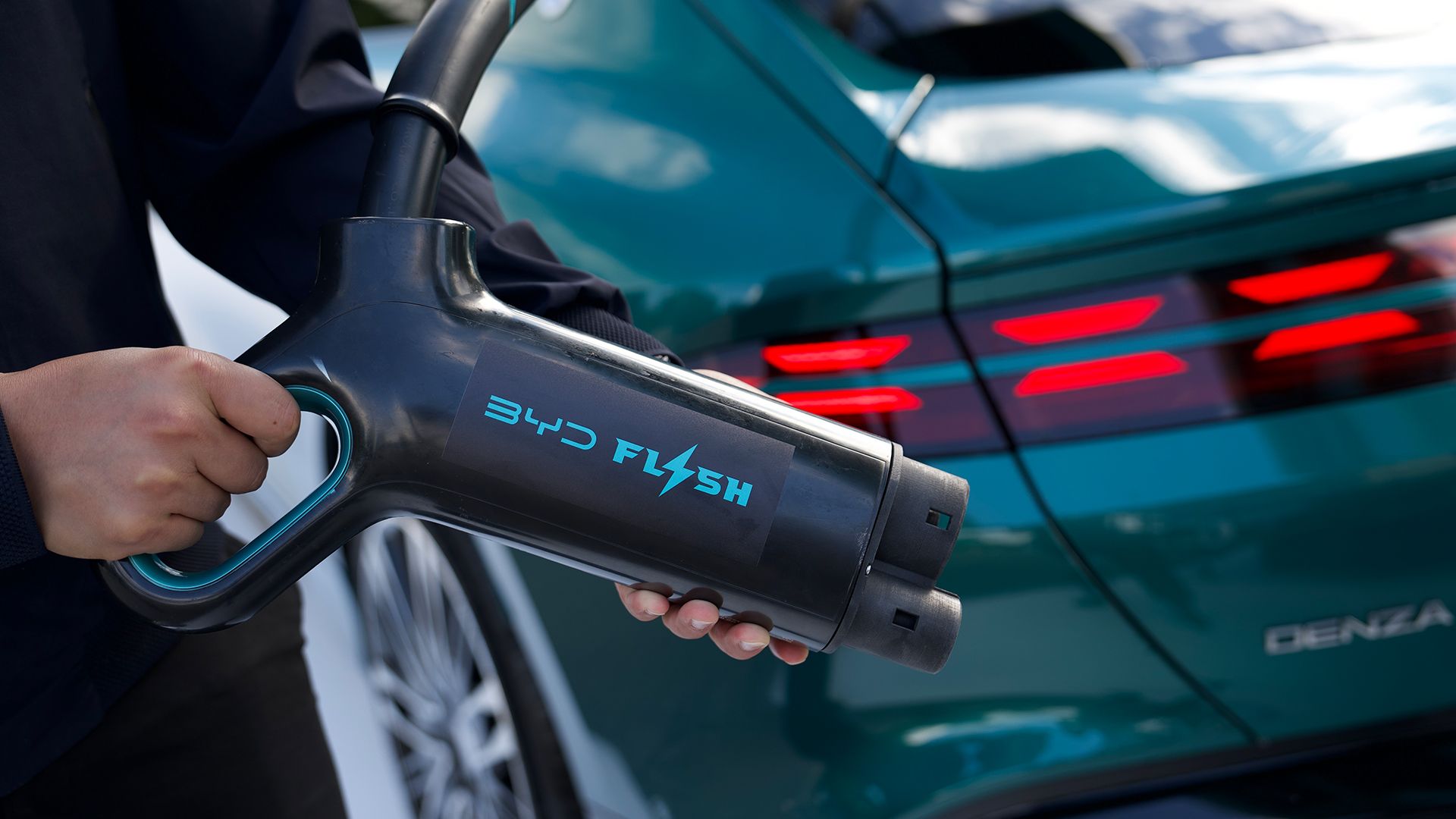
That said, China is trumping the competition with its tens of thousands of megawatt-level chargers that are capable of delivering as much as 2.2MW of power in the case of Geely’s recent announcement.
According to reports, Geely has already installed its industry-leading megawatt chargers in five cities in China already, with 15,000 charging sites planned by the end of next year.
What’s more, the likes of BYD has demonstrated that it can fully charge its vehicles in under 10 minutes from its fastest chargers outside of its domestic market, but Geely is pushing this even further, suggesting that it is already working on a 1000V high-voltage architecture that will see a 10-80% charging session take as little as five and a half minutes.
Granted, its 2.2MW system can’t be used to its full potential by any EV on sale yet, but China is busy future-proofing its network, ensuring it can service the vast number of customers that are making a switch to electrification and be ready for those upcoming models that will likely banish range anxiety to the history books.
Casio is reportedly planning to launch CRW-002, a second version of its popular CRW-001 ring
The first-generation ring, although something of a novelty, instantly sold out
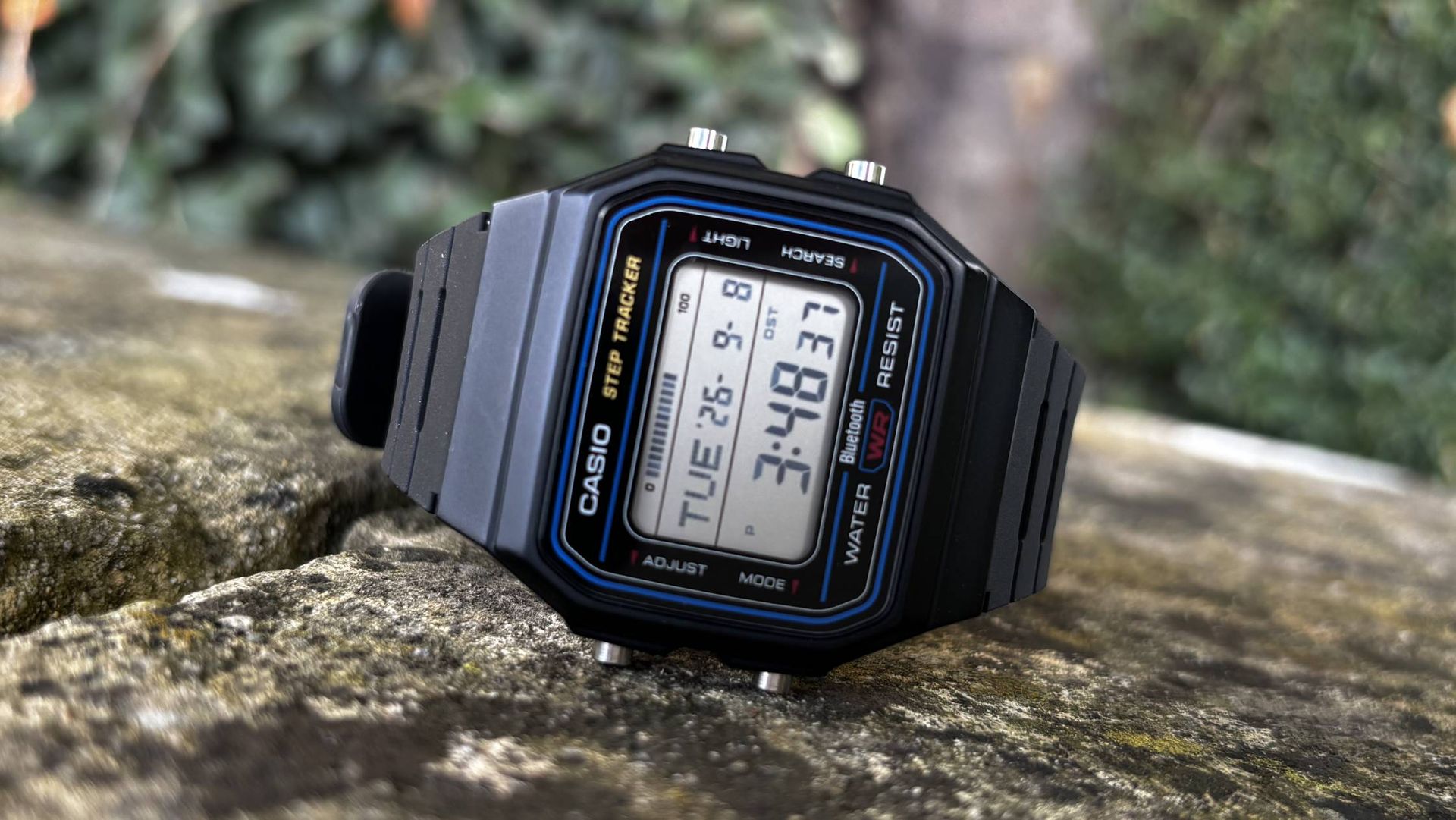
Casio's retro pull is strong, as its step-tracking F-B100W 'smart' watch is also very popular
Casio's CRW-001 gadget, the catchy name for its retro digital watch ring, sells like absolute hotcakes. Since its December 2024 debut, periodic restocks of the niche little watch-ring hybrid continue to sell out. We're not sure whether this can technically be classed as one of the best smart rings, but this weird little gadget certainly has its devotees.
Now, a new version is apparently on the horizon, according to a report by Russian website Casioblog, spotted and translated by Notebookcheck.
Dubbed, sensibly, CRW-002, the new smart ring is based on Casio's iconic metal A168 watch series. It's said to be available in steel and gold, and will sport some of the same text as sported on the original A168 watch, with phrases like 'Chronograh', 'Illuminator' and 'Water Resist'.
The band of the ring is also a replica of the strap, injection-molded, according to the images posted by Notebookcheck. Features reportedly include "dual time, a 60-minute stopwatch, an LED backlight, a calendar, 12- and 24-hour formats, and Time Flash, which blinks the light on the hour and at a time you set", according to Notebookcheck.
The price is said to be $135 (around £100 / AU$195), which lines up with the average prices of the CRW-001 (around $200 / £105 / AU$250), and it's reportedly set to be released in November.
More than a novelty
(Image credit: Future)
Retro-style Casio watches are evergreen and nostalgic, perhaps because they're part of a growing counterculture.
The Casio F-B100W, the Bluetooth-enabled digital watch with a simple step tracker linked to an app and a Find My Phone functionality, has sold like crazy. It was a sell-out hit in Japan, and some outlets in the UK, and very recently landed in the US. I called it "an absolute belter of a watch for the price" and the "most fun" smart wearable I've worn this year when I tried the Casio F-B100W in September 2026.
While the ring-watch has a... unique look, shall we say, obviously enough people like it o make it a hit, and it makes sense Casio would want to repeat its success.
Data center developer offers households $10,000 each in attempt to get huge campus approved
Residents have called the payment a 'bribe', and list numerous concerns over pollution, water use, and property values
Developer's chief marketing officer called the payment a "pretty radical and pretty leading-edge" idea
Households in Hazle, Pennsylvania, were offered $10,000 each as part of a plan to help get a 1,300 acre AI data center built near the town - but it hasn’t gone exactly as planned.
NorthPoint Development believed the scheme - which would cost $45 million - would help convince local residents to get on board with having the campus built, but many residents are calling the payment a “bribe” and have refused.
The developers have also planned a further $120 million over the next 15 years through funding for community projects and the police department if the data center is approved.
Money isn’t everything
"As a direct answer to the question 'What's in it for me?' I think we came up with something pretty radical and pretty leading-edge," said Brent Miles, NorthPoint's chief marketing officer.
Residents were sent a letter in June offering each household a $10,000 “grant” as part of the developers plans to build the campus at the foot of the Pocono Mountains, which is dotted with scenic lakes, rivers, forests, and recreational resorts.
The $10,000 grant would be a significant sum for most Hazle residents, with the median household income sitting at $60,000 - far below the national median of around $87,000.
Outside of being seen as a bribe, some residents see it as a way for the developer to cause issues between those who will be closer to the data center and those living further away.
Ed Parks, who lives adjacent to the planned site, said, “They are trying to drive a wedge between Hazle Township residents who are directly affected by the data center, like myself, and people who might live a couple of miles away” (via TechSpot).
Small town concerns match the bigger picture
Many Hazle residents are concerned about pollution, water usage, energy costs, and excessive noise caused by the site. There are also concerns that property values could drop if the site is approved, worsening economic factors for local residents even further.
Residents close to existing data centers have reported symptoms of nausea and dizziness related to the noise of polluting gas burning turbines that many sites have turned to as an alternative to connecting to local grids.
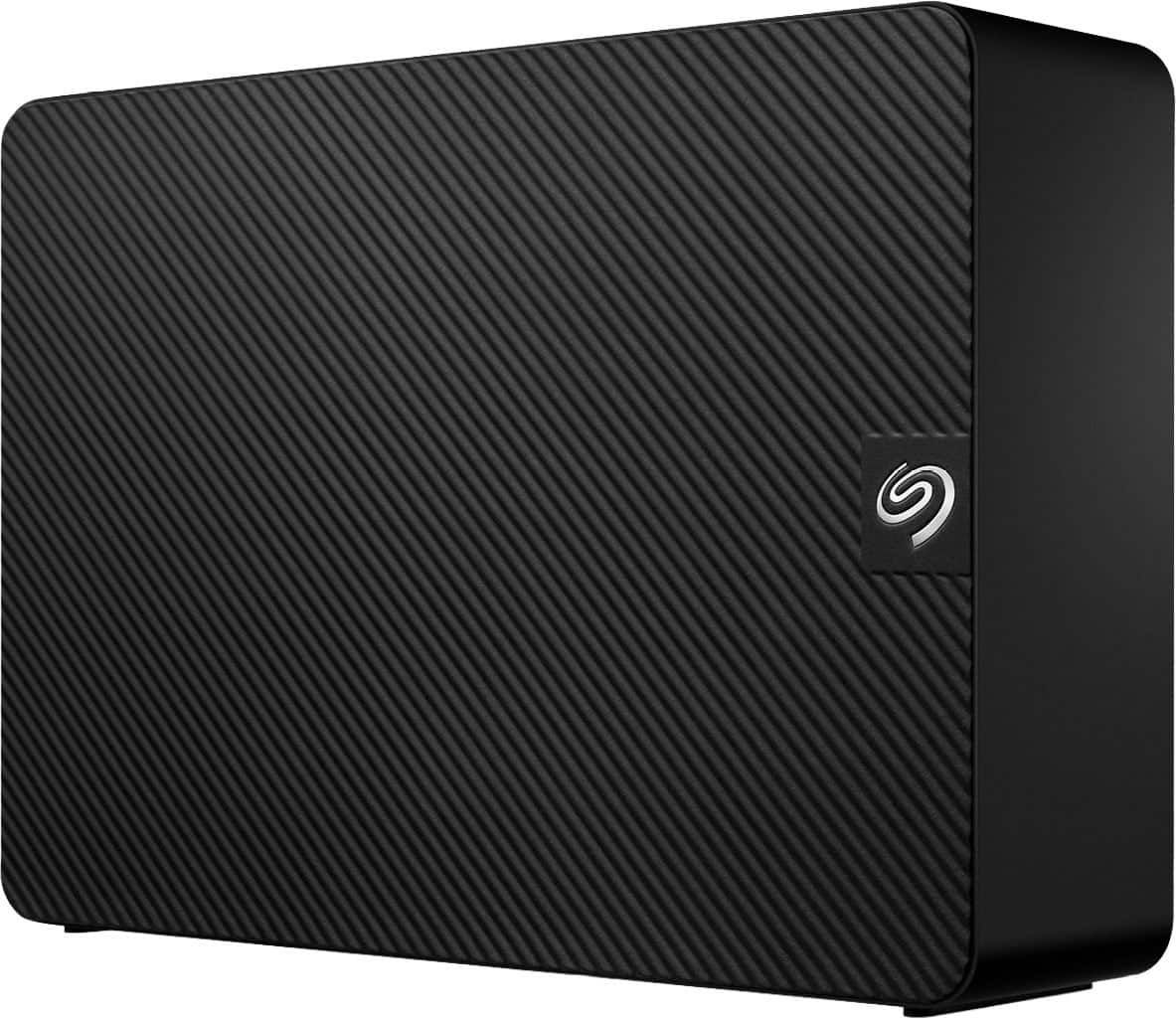
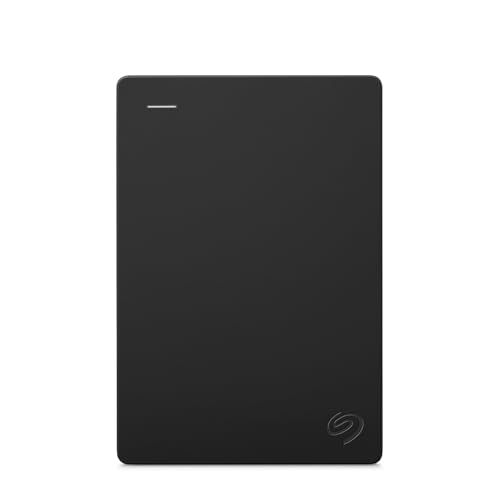
If you have years of photos, videos, backups and other large files, a 24TB external hard drive gives you an enormous amount of room to store them on, without having to install internal drives or resort to pricey paid cloud storage.
Best for: Professionals who needs huge amounts of desktop storage for backups, photographs, videos and other large files without installing an internal drive.
Why it matters: A single 24TB drive provides enough capacity to store large archives and backups that might otherwise be spread across several smaller drives or hosted online.
Seagate has proved a strong storage maker during our tests, so this one's an easy recommendation if you need a hard drive.
24TB is enough space for extensive media collections, large creative archives and multiple computer backups, making it particularly useful for a home office or anyone producing large amounts of content.
Setup is straightforward as well — connect the drive to your Windows PC or Apple Mac, and you can start transferring files immediately. Seagate also includes its Toolkit software if you want full control over your backups.
The drive is powered by an external adapter, so it's intended to stay on a desk rather than travel around with a laptop.
Price context & historical value
The $139.97 reduction from $829.96 to $689.99 works out at almost 17% off, bringing the cost down to around 2.9 cents per GB. That sounds like a great saving, but context is important here. At the end of December 2025, Best Buy sold the same hard drive for just $279.99, reduced from $329.99. That makes today's $689.99 deal a stunning $410 more expensive than that previous sale price — or around 146% higher.
The comparison shows just how dramatically storage prices have changed in a year. So while you're saving nearly $140 against today's regular price, this is far from the cheapest deal ever.
You need a huge amount of storage now and would rather keep everything on a single external drive than manage several smaller ones. The USB 3.0 connection also provides considerably more bandwidth than the mechanical hard drive itself requires for file transfers.
❌ Skip the 24TB Seagate External HDDif...
You can wait for storage prices to improve or for a better, bigger promotion. This is a desktop hard drive rather than a portable model so requires the supplied 18W power adapter as well as a USB connection. You can't simply plug it into your laptop and use it anywhere.
Also consider
2TB Portable Hard Drive: was $149.99 now $129.99 This much cheaper portable hard drive provides 2TB storage, USB 3.0 connectivity, plug-and-play operation, simple backup capabilities, an Adobe Creative Cloud trial and a one-year warranty.View Deal
AI models are becoming quickly outdated as they’re replaced with newer versions
Most AI tokens are used on models available for less than four months
Open-weight models are now more popular than closed AI models
New data from Vercel’s AI Gateway claims AI models are becoming outdated faster than ever as new versions are introduced. Token spend is increasingly on newer models – most of which have only been available for the past three months – and as use increases, token price is dropping.
Simultaneously, Vercel's report suggests the open-weight models are beginning to dominate, with the majority of tokens spent on the models with tunable options over the closed black box systems.
A key example of this is Fable 5, Anthropic’s most capable model, which lost out to Anthropic’s own Opus 5 as well as OpenAI’s Astra. But upstart models, such as TypeSafe AI’s Jev, are also having an impact.
Token price down
Date from the AI Gateway Production Index shows us that the average price per token has dropped, for the third month in succession, this time by 23.2%. While this is due to various factors, one of the key influences here is the token price way across the industry. Open-weight models make is possible to self-host or run on affordable cloud servers.
The significance of open-weight models is growing, as enterprise AI use realises that a closed model can be swapped out for a more affordable and capable open-weight alternative.
Consequently, in the September AI Gateway Production Index, open-weight models have taken 56% of the token volume, but only 14% of the spend on tokens. Open-weight models have grown in popularity throughout 2026, with a token volume share of just 13% back in April and representing just 10% of token use in December 2025.
Open-weight models making an impact include Meta Llama 4, but Vercel highlights Jev, from TypeSafe AI, as leaving a noticeable footprint in token pricing. The new model has a very low token cost, but relies on a different type of input (data, rather than conversation). They also note it is the “fastest-adopted model” since the AI Gateway Production Index was launched.
Churn and spend
While the improvement in AI models means better results for productivity and other uses, the manner of token spend may be about to change.
With the faster development and release of newer AI models, the commitment to older models – insofar as the purchase of tokens that can only be used on those legacy models – highlights one of the biggest debates in the AI discussion: that AI development is moving too quickly.
Unlike most 3D printers available today, the FLSUN T1 arrived in a relatively flat box, which was in stark contrast to the tall machine in the images. However, after about an hour of building, sipping coffee and double-checking, the machine was ready to go. Nothing too tricky on the construction side, though I needed to double-check the screws after the first few runs to fix some print quality issues.
Once the machine was complete and I stepped back, the T1 was instantly impressive and stood out from the other desktop 3D printers in the workshop. While Cartesian bed-slingers and increasingly CoreXY machines dominate the market, the T1 uses a Delta mechanism, with its print head suspended between three rapidly moving arms above a circular build platform. Prusa Research is one of the few other mainstream companies to still produce a printer of this style, but that model is aimed at the pro market with a price tag to match.
These delta machines are unusual-looking, but they offer a major speed advantage. Flsun quotes a maximum print speed of 1,000mm/s and an acceleration of 30,000mm/s², which, on paper, at least puts the T1 among the fastest machines I’ve tested.
However, what surprised me most wasn’t the speed. After careful assembly and adjustment, the T1 produced some of the most dimensionally accurate prints I’ve seen from a machine at this price level.
There are compromises, most notably noise, single-filament printing and a more involved setup process. For some, this is unlikely to be the best 3D printer - unless speed is the aim of the game. For rapid prototyping and functional printing, there’s plenty here to like.
FLSUN T1 3D Printer: Design
(Image credit: Alastair Jennings)
Unusually for a modern 3D printer, the Flsun T1 arrives essentially flat-packed, so my first job before starting the test was to assemble it, and having seen these machines in action and reviewed a couple of TriLab (now Prusa) deltas in the past, I didn’t fancy my chances.
I’ve built plenty of printers over the years, although mostly Cartesian and, more recently, CoreXY models. While I initially thought the complexity of the Delta would make construction difficult, in reality it was straightforward.
Actually assembling this Delta machine was deceptively straightforward because most of the complicated mechanical elements arrive pre-assembled. It’s largely a matter of fitting panels, securing components and installing the top.
(Image credit: Alastair Jennings)
However, my first prints didn’t quite meet my expectations; they weren’t bad, but they weren’t good either. They all had minor surface imperfections, even though the machine appeared correctly assembled.
If I hadn't tested the Flsun S1 a while ago, I might have dismissed the imperfections; after all, this isn’t an overly expensive machine given the build area. After checking the mechanism again and tightening a grub screw around the suspended head, print quality immediately improved.
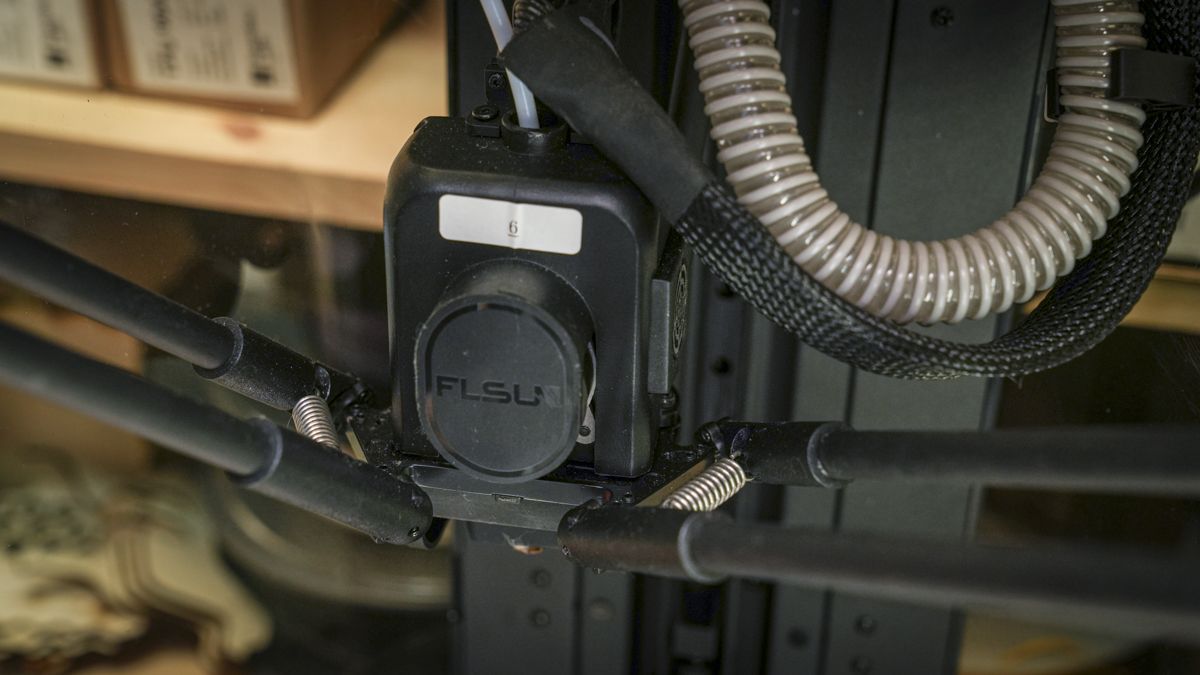
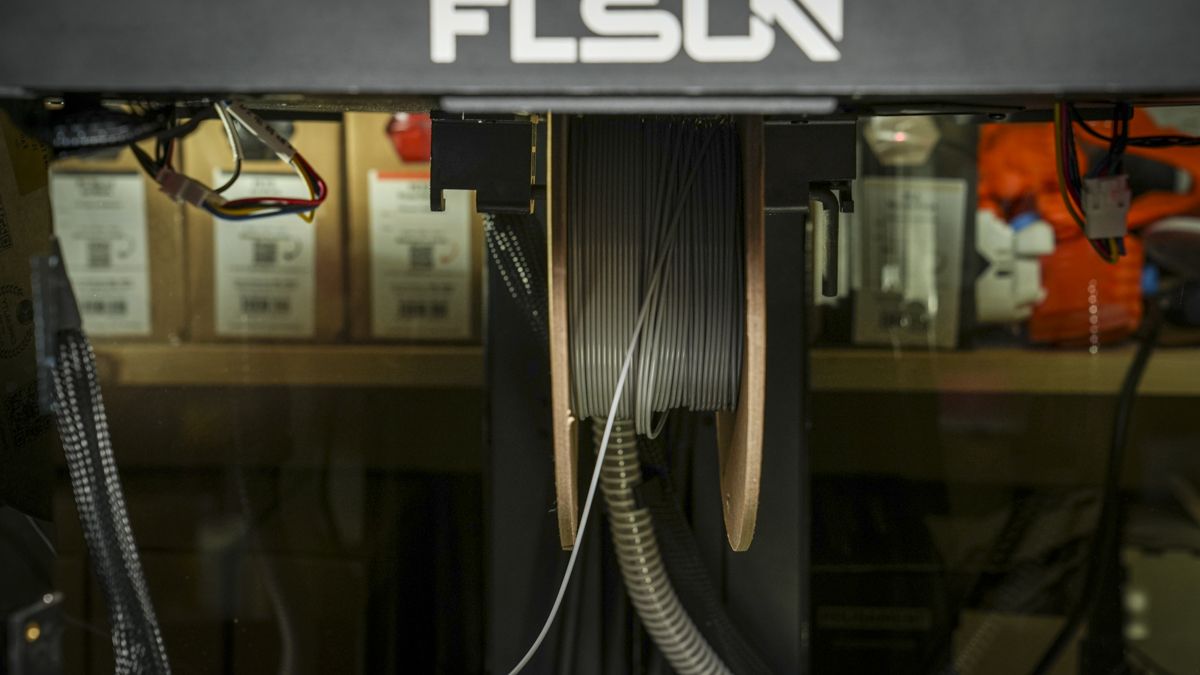
The design itself is striking, with the print head hanging between three articulated arms, giving the machine a futuristic appearance. While Flsun makes a wide range of Delta machines, the T1 offers an enclosed heated chamber and even a filament spool holder, which, while not sophisticated, it sits inside the machine, helping keep the filament moisture-free. Essentially, the reel is suspended from a metal rod above the print head. It looks crude, but it worked perfectly throughout testing.
At 436 x 490mm, the footprint is reasonable considering the build volume, although its substantial 836mm height means you’ll need plenty of vertical space.
FLSUN T1 3D Printer: Features
(Image credit: Alastair Jennings)
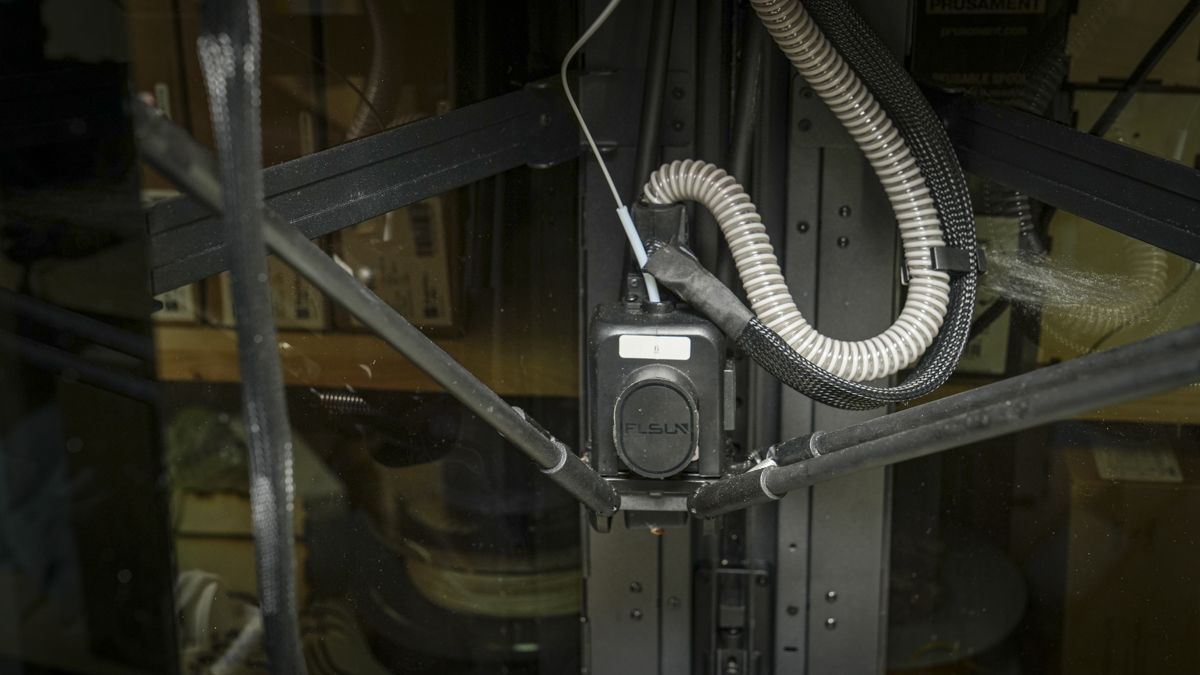
The Flsun T1's headline feature is its Delta mechanism. While traditional Cartesian printers move components independently along X, Y and Z axes, and CoreXY printers use a belt-driven arrangement to move the print head rapidly across a fixed plane, a Delta printer uses three vertical towers and articulated arms to control the position of its suspended print head. Visually, while a Cartesian and a CoreXY can look very similar, the Delta's inverted tripod design instantly highlights that it's something different.
While all 3D printers are fascinating to watch, the Delta system is even more so, and even as you see the print build, you can’t help but think that this system and the design in its complexity are impossible, yet it works. Even after years of using 3D printers, there’s still something slightly alien about seeing three arms rapidly coordinating their movement to position a nozzle accurately above the build plate.
The major advantage of this design is speed, although how or why it works so well is beyond me. Flsun quotes a maximum print speed of 1,000mm/s, with acceleration reaching 30,000mm/s², even with the latest CORE XY machines, those figures are difficult to match.
However, as I’ve seen in the past, fast movement is only useful if the extrusion system can keep pace, and as I found out with the larger S1, FLSUN has once again equipped the T1 with a powerful, if noisy cooling system, cooling system; I’ve also noted that they now sell a silencer kit. The tool head's dual-gear direct-drive extruder offers a quoted extrusion force of up to 78N, while the 300°C hotend has a maximum volumetric flow rate of 90mm³/s.
Throughout testing, filament delivery was remarkably reliable for a machine of this speed, with plenty of flexibility in the software settings. The spool’s position directly above the tool head meant that the filament follows a relatively straightforward path into the extruder, with fewer bends than on many conventional machines. During the test, I didn’t experience many filament-feed issues, and I ended up having quite a bit of faith in the system feeding older, and increasingly brittle PLA that would have jammed up other printers.
Cooling is a major part of this machine's success, and it’s especially important when you’re depositing material at this sort of speed. The T1 uses a CPAP high-pressure turbo fan rated at 30,000rpm. It’s effective, but it’s also extremely loud; when it starts running at speed, you’ll know about it.
In fact, one of the first useful prints suggested for the machine is a silencer that fits over the exhaust. It’s worth printing because it noticeably reduces the noise, although the T1 still isn’t a printer I’d particularly want operating beside my desk all day; as mentioned earlier, a silencer kit is now available.
Once constructed, the machine is fully enclosed, which helps both safety and material compatibility. Flsun specifies a chamber temperature of up to 50°C, while the bed can reach 110°C. Combined with the 300°C hotend, that gives the T1 enough thermal capability for materials beyond basic PLA, although out of the box it comes with only a brass nozzle.
The supplied 0.4mm nozzle is brass, so abrasive materials aren’t advisable with the standard hardware. At the time of testing, the Flsun website didn’t list an obvious official hardened-nozzle upgrade, although the E3D-style nozzle arrangement may open the door to third-party alternatives; obviously, check compatibility before fitting one.
During testing, I successfully printed PLA, PETG, ABS, and ASA with consistently good results.
Specs
Print Technology: FDM Delta Build Area: Ø260 x 330mm Minimum Layer Resolution: 0.1mm recommended Maximum Layer Resolution: 0.35mm recommended Dimensions: 436 x 490 x 836mm Weight: 18.44kg Bed: Heated, 110°C maximum Print Surface: Textured PEI print plate Software: FLSUN Slicer / compatible third-party slicers Materials: PLA, PETG, TPU, PVA, PET, ABS, ASA, PA, PC and others Print Speed: Up to 1,000mm/s; 30,000mm/s² maximum acceleration
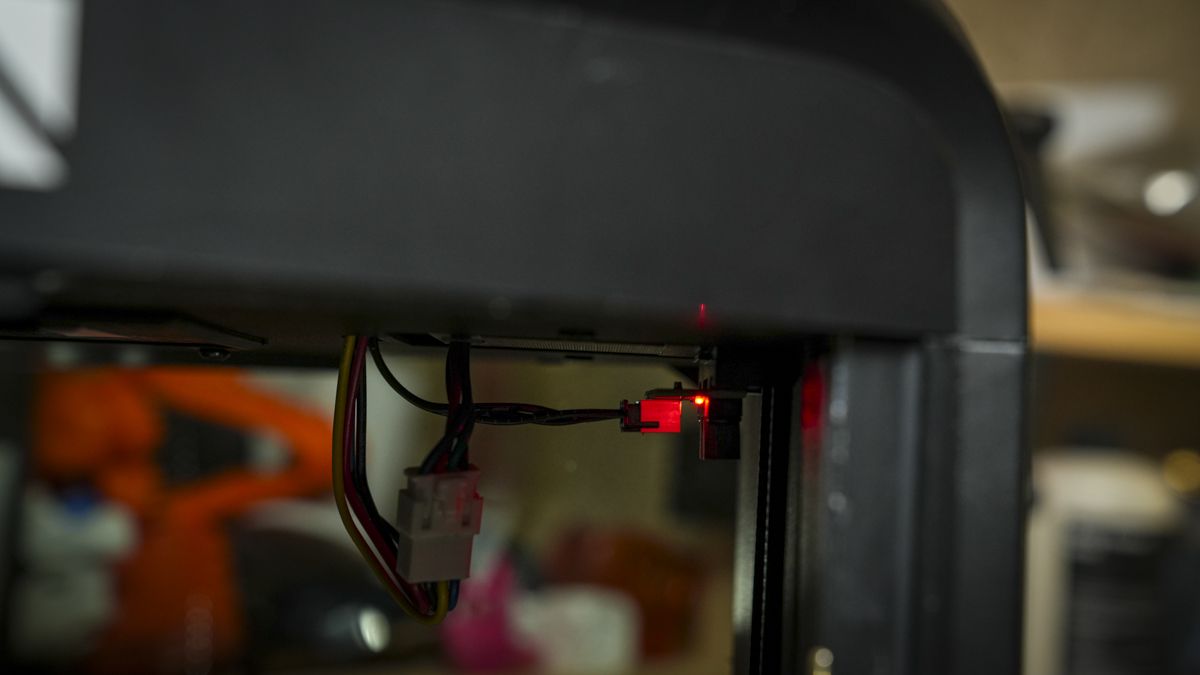
As you’d expect, the machine offers automatic bed levelling, vibration compensation, and input shaping, along with filament detection and power-loss recovery.
A 1080p camera enables remote monitoring and time-lapse capture. It doesn’t provide the sophisticated AI print-failure detection increasingly found on the latest premium machines, but during testing it connected reliably and provided a clear remote view of the print.
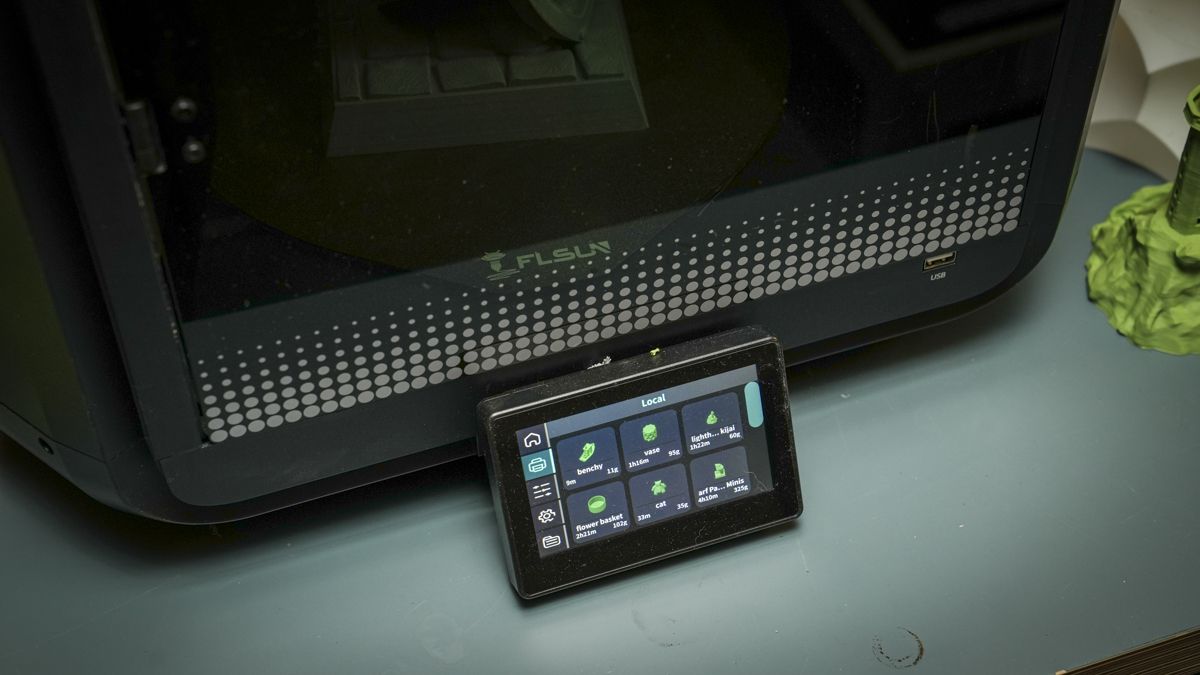
The 4.3-inch colour touchscreen is simple but excellent, with an interface that follows the same general approach as the company's larger machines.
Perhaps the most impressive specification, however, is the build volume. The circular platform offers Ø260mm of horizontal space combined with an impressive 330mm Z height. That’s a substantial printable area for a machine with such a modest footprint.
FLSUN T1 3D Printer: Performance
(Image credit: Alastair Jennings)
Getting started took some thought and about an hour to fully unbox and assemble. It’s been a while since I last put this much effort into building a machine, but for the most part the instructions were well documented and shouldn’t be beyond most people. The one point is that you do need to build, double-check, print and then re-check.
The point is that this machine is all about speed, so any small movement in the joints, frame, or anywhere else will be amplified in the print. The more time you put into the construction and pre-flight checks, the better this machine will be. When I first finished construction and ran a test print, the results were good but not quite what I expected.
Minor surface imperfections suggested something wasn’t quite right, and another inspection revealed a grub screw around the Delta mechanism that needed tightening; once that was done, the machine's speed and print quality suddenly took a leap forward.
(Image credit: Alastair Jennings)
Speed was the first feature I tested, and as the first 3D Benchy rapidly appeared on the print bed, it was obvious why these Delta machines still exist. If you need to print stuff quickly, then a Delta’s what you need.
Speed isn’t all; the Flsun T1 also impressed with print quality and dimensional accuracy, and as you notch down that speed, the accuracy of the prints, which was already good, improved further.
X Error Average = 0.16mm Y Error Average = 0.106mm X&Y Error Average = 0.133mm
Fine Flow Control - score of 5 Fine Negative Features - score of 5 Overhangs - score of 5 Bridging - score of 5 XY resonance - score of 2.5 Z-axis alignment - score of 2.5
Adding up the totals gives a final score of 29 out of 30.
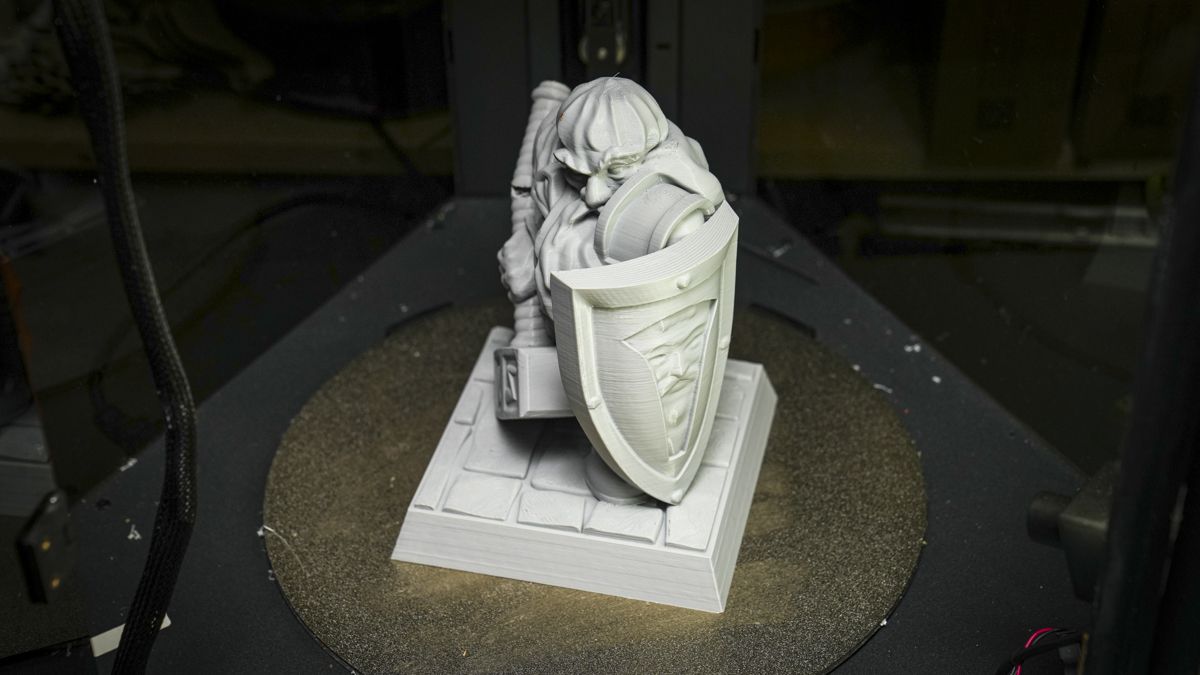
Those numbers were reflected in real-world use. Circular features in the dimensional test appeared remarkably clean with little visually apparent ovaling, while separately printed components fitted together snugly.
More importantly, models designed in CAD generally translated directly into usable physical parts without repeatedly adjusting dimensions to compensate for printer inaccuracies.
That makes the T1 particularly useful for prototyping and functional printing. It’s not simply fast; it can produce accurate parts quickly, which is a far more meaningful advantage.
FLSUN T1 3D Printer: Final verdict
(Image credit: Alastair Jennings)
The Flsun T1 shows exactly why Delta 3D printers still have a place alongside increasingly sophisticated CoreXY machines. It’s extraordinarily fast, visually distinctive and, once properly assembled, capable of exceptional print quality.
That 29 out of30 benchmark result is impressive and more importantly, the accuracy carried over into practical projects, where components fitted together correctly and CAD dimensions translated well to printed parts.
There are compromises. The CPAP cooling system makes the T1 extremely loud, even with the recommended silencer. Assembly also requires greater care than today’s almost appliance-like CoreXY machines. Tightening every bolt and grub screw properly can significantly improve print quality.
It’s also strictly a single-filament printer, with no straightforward equivalent to the increasingly common automatic multifilament systems.
However, those limitations matter less if your priority is functional printing, such as for product designers, engineers, makers and workshops producing prototypes or mechanical components; the combination of speed, accuracy and substantial build volume is will be more important.
The T1 isn’t the most polished 3D-printing experience, but once correctly configured, it’s an exceptionally good machine.
The Flsun T1 makes the most sense if speed and dimensional accuracy matter more than multicolor printing or complete plug-and-play simplicity. Its Delta mechanism delivers extremely fast movement, and my testing showed that speed doesn’t have to come at the expense of accuracy.
Product designers, engineers, makers, and small workshops producing prototypes should find plenty to appreciate, particularly given the build volume. Beginners who want the simplest possible experience may prefer a modern, pre-assembled CoreXY printer. Likewise, anyone mainly interested in multicolour decorative models should look for machines with automatic multifilament systems instead.
Should I buy the Flsun T1 3D printer?
Value:
Exceptional speed and accuracy make this an impressive printer for money.
4.5
Design:
Distinctive Delta engineering delivers decent volume for the size of the machine but requires careful assembly.
4
Features:
Plenty of printing essentials, though it notably lacks multi-filament capability.
4
Performance:
Outstanding speed and accuracy combine for functional printing.
5
Total:
Exceptionally capable Delta printer with speed, accuracy and great value.
4.5
Buy it if…
You need speed
For rapid prototyping, the T1 is exceptionally good. Its Delta mechanism combines fast movement speed with excellent extrusion and cooling.
Accuracy really matters
Our 29/30 benchmark result demonstrates how capable the T1 can be once correctly configured. Functional components printed accurately, fitted together well and required remarkably little dimensional compensation when moving from CAD design to finished physical parts.
Don't buy it if...
You need silence
The high-pressure cooling system generates a lot of noise, particularly when the printer is working hard.
You want multicolour
The T1 is a single-filament machine, without the straightforward automatic material-changing systems offered by many competitors.
Ravens vs Cowboys kick-off: Sun, Sep 27 at 4.25pm ET / 9.25pm BST / 6.25am AEST (Mon)
The Ravens vs Cowboys is the very first NFL game to take place at the legendary Maracanã in Rio de Janeiro, and although the playing surface has been in an atrocious state for some time, quarterbacks Lamar Jackson and Dak Prescott shouldn't have any trouble laying on the samba.
The issue for the Cowboys is that this is about as bad a matchup as there is. They've given up the third-most rushing yards per game in the 2026 NFL season so far, while the Ravens have racked up the fifth-most rushing yards per game.
And Baltimore should rank even higher on that list. With the team 7-6 up at the interval, new offensive coordinator Declan Doyle effectively pulled Derrick Henry for the second half against the Saints last Sunday, to disastrous effect. King Henry still finished as the game's top rusher, but he'll be keen to make up for lost time in Brazil.
The Cowboys went off against the Commanders to get off the mark, with Prescott throwing for 279 yards and four touchdowns, two of those going to CeeDee Lamb, but it's difficult to gauge where they stand. After all, Washington lost Jayden Daniels before half-time, and the Giants got the better of Dallas in the opening week.
Read on as we explain how to watch Ravens vs Cowboys for free.
Can you watch Ravens vs Cowboys for free?
Yes. Ravens vs Cowboys is being shown on free-to-air Channel 5 and 5 in the UK, and on free-to-air Virgin Media Two and Virgin Media Play in Ireland.
Traveling abroad right now? You can use a VPN to watch Ravens vs Cowboys for free as if you were right at home.
Use a VPN to watch Ravens vs Cowboys live streams
A VPN is a handy piece of software that can make your device appear as if it's back in your home country, so you can unlock your usual streaming services. One of our favourites is IPVanish – it does everything and comes with up to 83% off.
Get IPVanish and stream Ravens vs Cowboys from anywhere.View Deal
How to watch Ravens vs Cowboys live streams in the US
In the US, the Ravens vs Cowboys game is being shown on CBS and Paramount+.
Paramount+ starts at $8.99/month or $89.99/year, and is also home to Champions League soccer. However, you can access Paramount+ virtually for free with a Walmart Plus 30-day trial for $1.
Outside of the US?IPVanish can unblock your stream from anywhere in the world.
How to watch Ravens vs Cowboys live streams in the UK
In the UK, Ravens vs Cowboys is free-to-air on Channel 5, with live streaming available via the 5 platform.
If you're traveling outside of the UK, you can make use of IPVanish to access that free Ravens vs Cowboys coverage.
How to watch Ravens vs Cowboys live streams in Australia
In Australia, the Ravens vs Cowboys game is being shown on ESPN via Foxtel, with live streaming available via Kayo Sports.
Kayo Sports subscriptions start at AU$30 per month after a 7-day free trial, as detailed above. Equally, you can get your first month for AU$1.
It's also available to stream live on NFL Game Pass on DAZN, which is showing every remaining game, including the Super Bowl.
Prices start at AU$339.99 for the season if you pay upfront, rising to AU$34.99/month if you commit to 12 months, and AU$33.99/week on a rolling basis.
Not in Australia right now? You can simply use a VPN like IPVanish to watch the action as if you were back home.
How to watch Ravens vs Cowboys live streams in Canada
(Image credit: Other)
The Ravens vs Cowboys game is available to watch on DAZN in Canada.
DAZN, which is showing every 2026 NFL fixture, starts at CA$24.99/month.
It's also being shown on CTV.
If you're out of Canada but still want to tune in, explore the VPN route set out above, which will help you access your accounts from anywhere.
What is the Ravens vs Cowboys start time?
The scheduled Ravens vs Cowboys kick-off time on Sunday, September 27 is 5.25pm BRT local time in Rio de Janeiro, which is 1.25pm PT / 4.25pm ET / 9.25pm BST.
That's 6.25am AEST on Monday, September 28 in Australia.
What is the Ravens vs Cowboys head-to-head?
The Ravens and Cowboys have faced off on seven previous occasions. Baltimore won six of those games, and Dallas one.
Can I watch Ravens vs Cowboys on my mobile?
Of course, most broadcasters, like 5 and Virgin Media, have streaming platforms that you can access through mobile apps or via your phone's browser.
You can also stay up-to-date with the latest NFL news and plays on the official social media channels on X/Twitter (@NFL), Instagram (@NFL), TikTok (@NFL) and YouTube (@NFL).
We test and review VPN services in the context of legal recreational uses. For example:1. Accessing a service from another country (subject to the terms and conditions of that service).2. Protecting your online security and strengthening your online privacy when abroad.We do not support or condone the illegal or malicious use of VPN services. Consuming pirated content that is paid-for is neither endorsed nor approved by Future Publishing.
Panasonic Let's Note SC7 weighs just 919 grams but passed drop tests from both 76 and 30 cm
The chassis meets the US military's MIL-STD-810H toughness standard
Battery testing returned nearly 23 hours of continuous everyday use
Japanese manufacturers have long built a reputation for producing remarkably light business notebooks, with some models weighing under a kilogram entirely.
Panasonic has now expanded that lightweight lineup with the Let's Note SC7, a compact notebook weighing just 919 grams total.
The company also carried over its distinct circular wheel pad, letting users scroll by tracing a finger along the pointing device's outer rim.
Packs a full-day power into a small frame
The SC7 features a 12.4-inch display with a 3:2 aspect ratio, taller than the widescreen format common on most rival laptops today, showing more vertical content at once, improving efficiency when editing spreadsheets, documents, or browsing lengthy web pages daily.
Inside sits an Intel Core Ultra 5 325 processor paired with a 47 TOPS neural processing unit for on-device AI tasks.
The low-end version of this device comes with 16GB of LPDDR5X RAM and 512GB of internal storage - however, users can choose models with 32GB or 64GB of RAM and 1TB or 2TB of internal storage depending on the buyer's needs.
Let's Note SC7 ships with Wi-Fi 7, Bluetooth 5.4, two Thunderbolt 4 ports, two USB 3.2 Gen 1 ports, HDMI, and Gigabit Ethernet.
Under the hood, this notebook uses a 56Wh removable battery, which is attached with two screws rather than a latch.
According to Panasonic, this battery lasts roughly 17.7 hours during video playback and 32.4 hours in idle mode under JEITA 3.0 standards, and charging through the bundled 65W USB PD adapter reaches about 46% capacity within 30 minutes.
A magnesium alloy body measuring 273.2 x 208.9 x 19.9 mm combined with internal ribbing keeps the notebook sturdy, though it still appears slim.
Sturdiness, software, and benchmark results that support the design
Panasonic subjected the SC7 to internal drop tests from 76 centimeters and 30 centimeters across 26 separate directions during development.
The chassis also passed a 100 kgf pressure vibration test and met the US Department of Defense's MIL-STD-810H toughness standard - few compact business notebooks built outside Japan undergo this level of physical stress testing before reaching commercial release.
The built-in NPU meets requirements for Microsoft's Copilot+ PC program, enabling both cloud-based and local artificial intelligence processing directly on device.
PCMark 10 testing showed the processor performing at full capacity, aided by Panasonic's proprietary MaxPerformer heat and power tuning system.
On Geekbench 7, the Let's Note SC7 scored 2354 points on single-core tasks and 10437 points on multi-core benchmarks.
Battery testing under PCMark 10's Modern Office profile returned roughly 22 hours and 59 minutes of continuous everyday use.
For security, this device includes facial recognition through an infrared camera alongside a fingerprint sensor built into the power button.
It is currently available in gray, black, rose, and deep indigo, but there is no indication that this device will sell outside Japan.
All these capabilities do not come for cheap, as Panasonic lists this device for 298,100 yen, which is about $1,880.
There are many audacious and commendable feats in gaming. Taking down Consort Radahn, platforming through the Path of Pain, filling your entire Pokedex, to name but a few. However, despite personally doing all these things, one task chewed me up and spat me out repeatedly. One that, on paper, isn't all that tough at all.
From the Backlog
Every gamer has a backlog — and that’s no different for us at TechRadar Gaming. From the Backlog is a series about overdue first plays, revisiting classics, returning to online experiences, or rediscovering and appreciating established favorites in new ways. Read the full series here.
The task: To get through Act One of the mammoth CRPG, Baldur's Gate 3(BG3).
The 'act one syndrome' brought on by the sheer volume of content and the steep learning curve of BG3 is something that just about everyone has endured at some point when exploring Faerûn.
However, I feel I have been wearing this albatross around my neck for quite some time. While watching others take second laps around Faerûn for a Dark Urge run, unburdened by this plight of mine.
BG3 has been the loud, obnoxious gnawing at the back of my mind. The bane of my backlog, and at some point, I snapped.
Operation: get act one done
(Image credit: Larian Studios)
On paper, it's far from a Herculean task. After all, if you really want to, you can hop off the Nautiloid and head straight for the Githyanki Crèche if you choose. But ignoring the slew of content and the abundant, overlapping 'what ifs' is just too tall a task for a completionist such as myself.
I've gone back to the BG3 well a grand total of seven times. Each time, I fell at the first-act hurdle, but for different reasons.
At first, it was simply overzealous confidence and ineptitude. There was an underlying issue in that my understanding of Dungeons & Dragons principles was severely lacking.
As a result, there were many hour-long battles that inevitably led to a full party KO and a painful restart. Poor decisions compounded with each new dialogue exchange. This culminated in a heated exchange with a deceptively powerful frog, and the first of many save files to be abandoned. RIP Ignacius, my first Tav to fall.
Then came the attempts to right that wrong. A YouTube brush-up on DND systems here and there, a few tweaks to the starting build, and it would all surely work out fine.
It did not.
(Image credit: Larian Studios)
There was an inevitable and foolish overcorrection, a choice to play a build that simply wasn't fun to use, especially for a novice like myself. Monks sound great on paper, as you can let your fists solve all problems. Until you’re starved for Ki and left helpless. So, with that, another save file bit the bullet. RIP Falconhoof.
You would think at this point, with so much Baldur's Gate 3 act one experience behind me, success was all but guaranteed. But then, like a pesky Kobold leering from the shadows, a menacing creature I call my wife said, in hushed tones, 'That looks fun; will you show me how to play?' Thus beginning a co-op campaign led by a D&D novice, acting as a sage for an even bigger novice.
Safe to say, this blind leading the blind dynamic was about as successful as Lae’zel would be headlining at the Comedy Cellar. So, we dug a twin grave for my wife's Tav and poor, unfortunate Arcane Michael.
It was these constant setbacks that set the wheels in motion for even more attempts to go awry. Because the dynamic shifted from a state of wonderment and curiosity to an attritional, transactional slog, as scenarios, battles, and pivotal choices repeated again and again, lacking the weight they once had.
Much like Tav, I too was infected with a parasite acting as a ticking time bomb. At some point, the tedium, or the ennui, would set in, and I would succumb to that parasite's mind control. Forcing me to exit the game, uninstall it, and relegate BG3 to the back of the backlog again.
Mercifully, this affliction doesn't come part and parcel with a tadpole insertion through the eye socket, but it’s unpleasant nonetheless.
Finding my Faerûn flow state
(Image credit: Larian Studios)
Returning for my eighth crack, things had to be different. So, I put those wheels in motion. I cooled off for an entire year, forgetting large portions of the opening act in the process. I researched the most fun, accessible build to play relative to the most recent patch. I even passed on some hot and fresh releases, devoting all my time and energy to breaking through.
But above all, I knew that if this was ever going to work, I would need to learn how to let go. To let decisions shape the experience rather than relying on save-scumming, embrace the rough and the smooth in equal measure, and find the mental fortitude to push on towards new and exciting things.
As someone who wants to see everything a game has to offer, ponder over every decision, min-max at every opportunity, and somehow manage to accurately roleplay while juggling all of this. I was still skeptical that it would all click into place. But against all odds, in honor of my newborn son, my Halfling Rogue, Lorcàn, was born, and before long, I could see the Shadow-Cursed Lands on the horizon.
With a streamlined build that allowed me to rely on Luck, overpowered stealth, and flexibility to multiclass. No combat encounter felt like an insurmountable task, and no conversation felt like an inevitable road to a failed dice roll. My half-pint Halfling fittingly gave me the glass-half-full mindset I needed.
Minthara and her goblins were vanquished: shoved down a chasm to their doom. The party shone a light on the Underdark's mysteries. I left that demonic frog to their own devices. But above all, the insurmountable pressure to finally leave Act One had dissipated and this is an accolade I place in my personal trophy cabinet of gaming feats.
The city of Baldur's Gate awaits, and finally, I feel that curiosity and magic again.
Meta's Petal cable will carry a petabit of data every single second
The cable stretches roughly 7,000 kilometers between the United States and France
Meta expects Petal to enter commercial service sometime in 2029
Meta has announced Petal, a subsea cable system built to carry a petabit of data every second across the Atlantic Ocean.
The company says this new system will stretch roughly 7,000 kilometers, or about 4,300 miles, linking the United States and France.
Meta expects Petal to enter service in 2029, working alongside NEC Corporation and Sumitomo Electric Industries on its construction and eventual deployment.
How Petal reaches such enormous speed
Undersea cables already carry about 99% of the world's intercontinental internet traffic, according to Meta, making new capacity increases commercially significant.
Traditional transatlantic cables move data in terabits each second, but Petal aims for petabit scale, roughly a million gigabits every second.
"Achieving petabit-per-second capacity across a transoceanic submarine system represents a major technological milestone in the history of global telecommunications," said Eduardo Mateo, Chief Strategy Officer, Submarine Network Division at NEC Corporation.
According to Meta's estimate, that much capacity could let 75% of Earth's population stream music simultaneously.
Reaching that scale required multi-core fiber technology, doubling the 24 fiber pairs used on Meta's earlier Anjana cable system into 48 spatial channels.
Petal also uses a lower power repeater design that allows the entire system to run from a single feeding point for added resilience.
That capacity would make Petal roughly 3.3 million times faster than a typical American home internet connection, based on average broadband speeds.
At that speed, Petal could theoretically move every song ever commercially released to another continent in under one second.
Meta says Petal will double existing transoceanic capacity without adding more power equipment or new physical structures, a claim still untested outside controlled trials.
Undersea cables remain critical infrastructure despite the cost
Communication traffic keeps rising as AI tools and everyday digital services demand more resilient, reliable connections between continents.
This is why Meta keeps expanding its subsea capacity across multiple regions and long-distance routes worldwide.
The company has backed more than 20 subsea cable projects already, including its wider Project Waterworth initiative, giving it a long record in undersea infrastructure.
"Meta continues to invest in digital infrastructure, such as subsea cables, because they are foundational to delivering the high quality services our end users expect," said Alex-Handrah Aime, Vice President, Network Investments at Meta.
Sumitomo Electric echoed that reasoning, framing its new two-core fiber as essential to supporting long-term global network expansion.
"We are committed to supporting the global network expansion essential to realizing a highly digital future," said Takehiko Okada, General Manager, Optical Fiber and Cable Division at Sumitomo Electric Industries.
Whether Petal meets its 2029 deadline will depend on regulatory approval, ocean permitting, and manufacturing timelines that often slip for projects this size.
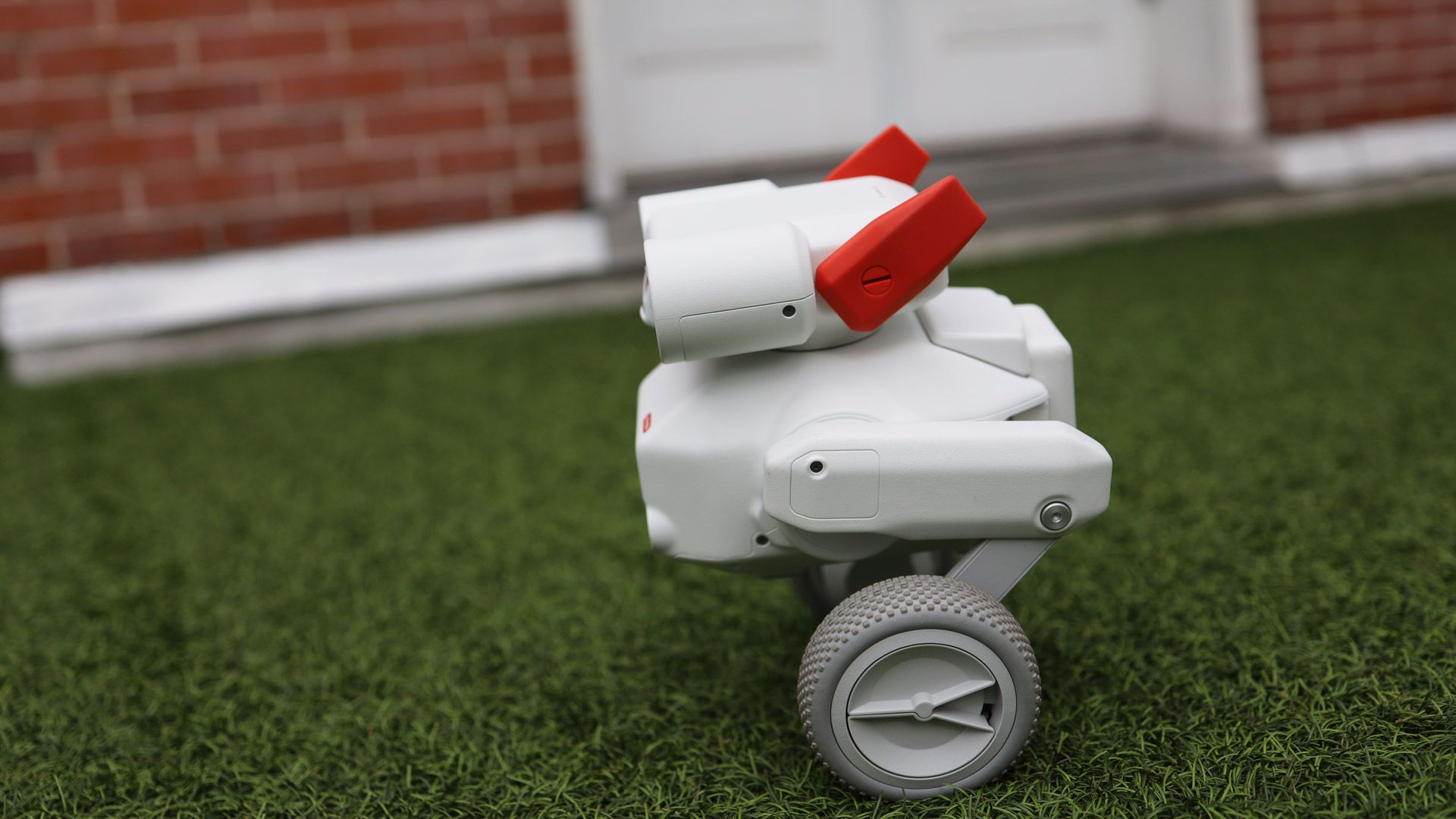
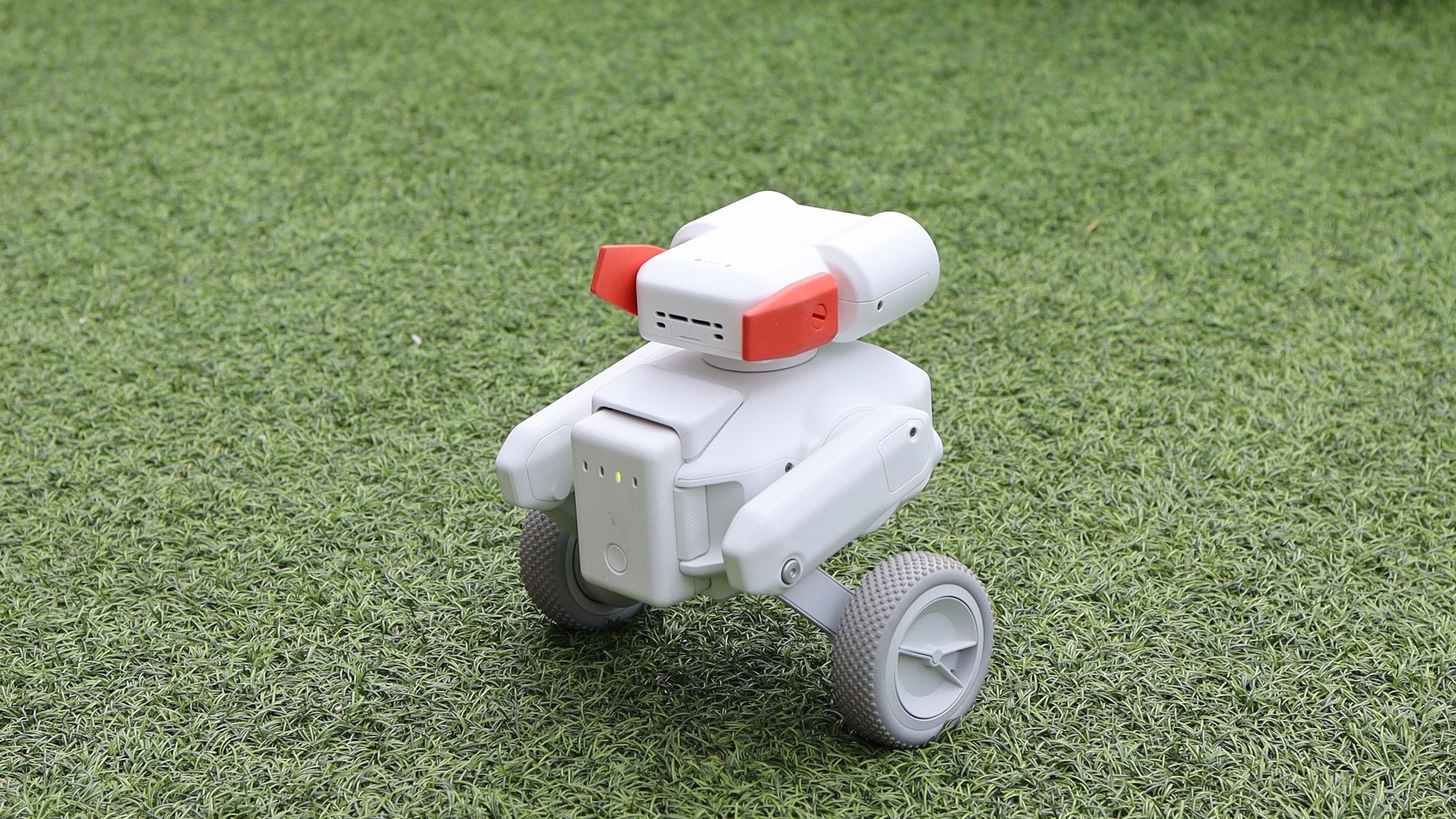
When it comes to personal robots, Mondo's Beni camera robot might be the perfect mix of cute and utility, with an emphasis on cute.
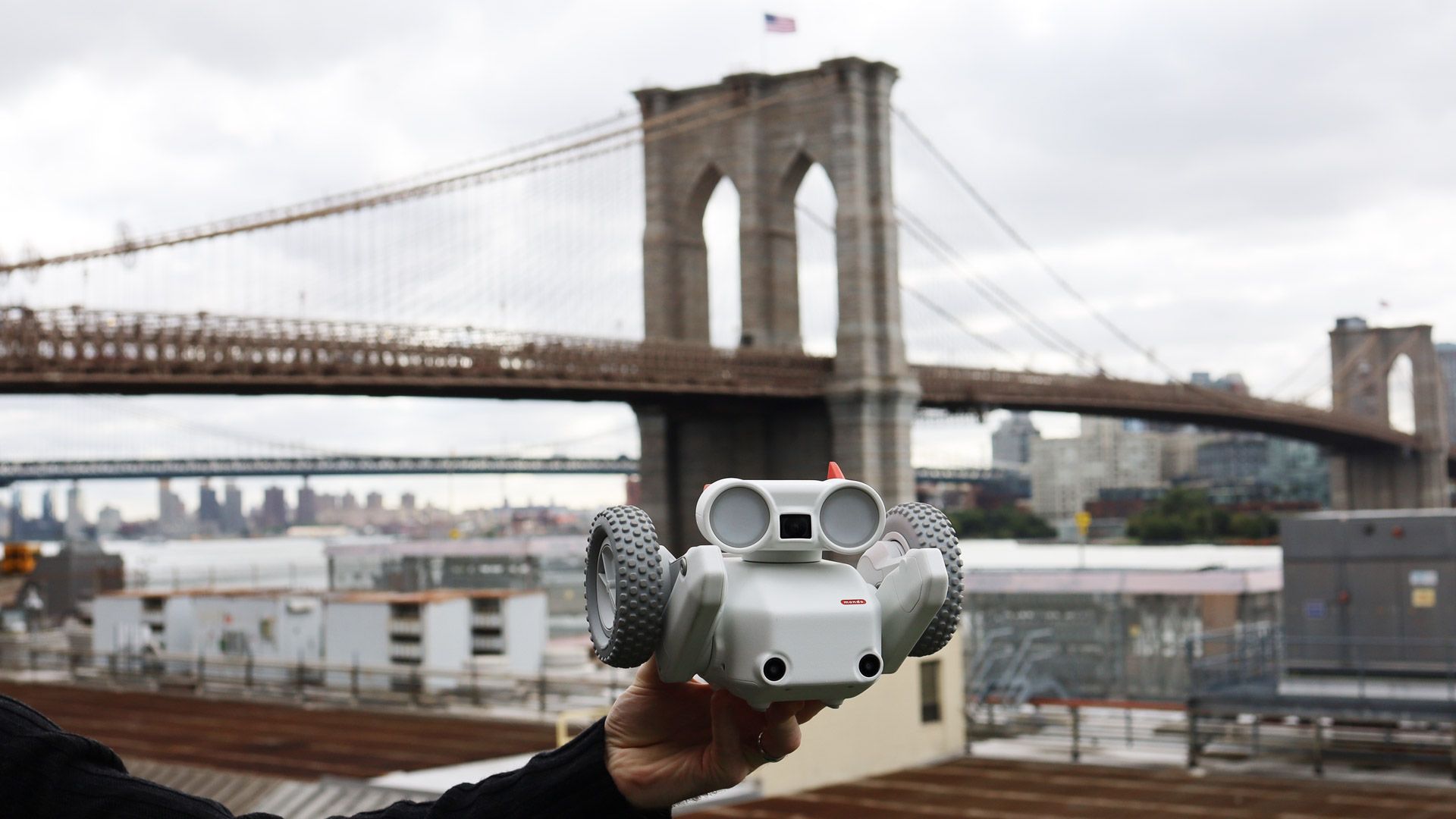
As soon as I laid eyes on the pint-sized, two-wheeled bot, I was smitten. It darted quickly from place to place and, as Beni turned its square head in my direction and 'looked' at me with its two large and luminous eyes, I felt it peering into my lonely soul. Finally, a robot companion that wouldn't terrify me with grabby, slow-moving hands, or crowd me with uncanny valley legs and torsos.
Unveiled a few months ago by Mondo Robotics and set to arrive in consumer hands in October, the self-balancing Mondo Beni was initially intended as a child's toy, but it had features — in particular a 4K 60fps camera that can follow you around — that appealed to creators. So Mondo pivoted, and now the $799 rolling robot is marketed as "your first camera robot".
In addition to the camera, which can also shoot 1080p 120fps slow motion, Beni features a pair of sensor cameras that provide a 150-degree field of view for tracking and obstacle avoidance. I watched as Beni's handlers used the iOS app to select subjects for Beni to track, and then Beni followed them around like a very obedient puppy dog. One Mondo exec described Beni as "a ground drone".
Beni is surprisingly resilient. When someone kicked the robot over, it instantly righted itself back onto its two rubber wheels as it shook its blocky head and made a little noise.
(Image credit: Lance Ulanoff / Future)
Programming cuteness
One of the things that makes Beni so darn cute is all the canned (Beni does not learn) animations and audio. It has about a dozen of each, and they give the little white and orange bot a distinct personality. There's a sort of programmed indomitable spirit; nothing can keep Beni down or stop it.
It can effortlessly jump (up to 10 inches), flip, and backflip. For now, those moves are triggered either via the app or a wearable remote control with a super-easy-to-use joystick. Mondo would eventually like Beni to jump over obstacles as it sees them.
I used the intuitive wearable remote to drive Beni and, with a press, make the little robot flip. There's also a big red button to stop Beni or, with long presses, have it squat down or stand back up.
Lance Ulanoff / FutureBeni with Mondo Marketing Director Cody SkeneLance Ulanoff / FutureLance Ulanoff / Future
Beni starts with 32GB of onboard storage for collecting video of you as it tracks you on a walk or run (up to 17.9mph), or as it follows your pet around (assuming the pet doesn't attack it or run away in horror). There's also a built-in microSD card slot for additional storage.
You can take good-length walks or runs with Beni, because it runs (or rolls) for an hour and a half on a charge. There's a removable battery pack on the back with light indicators to show you Beni's life… er… juice level.
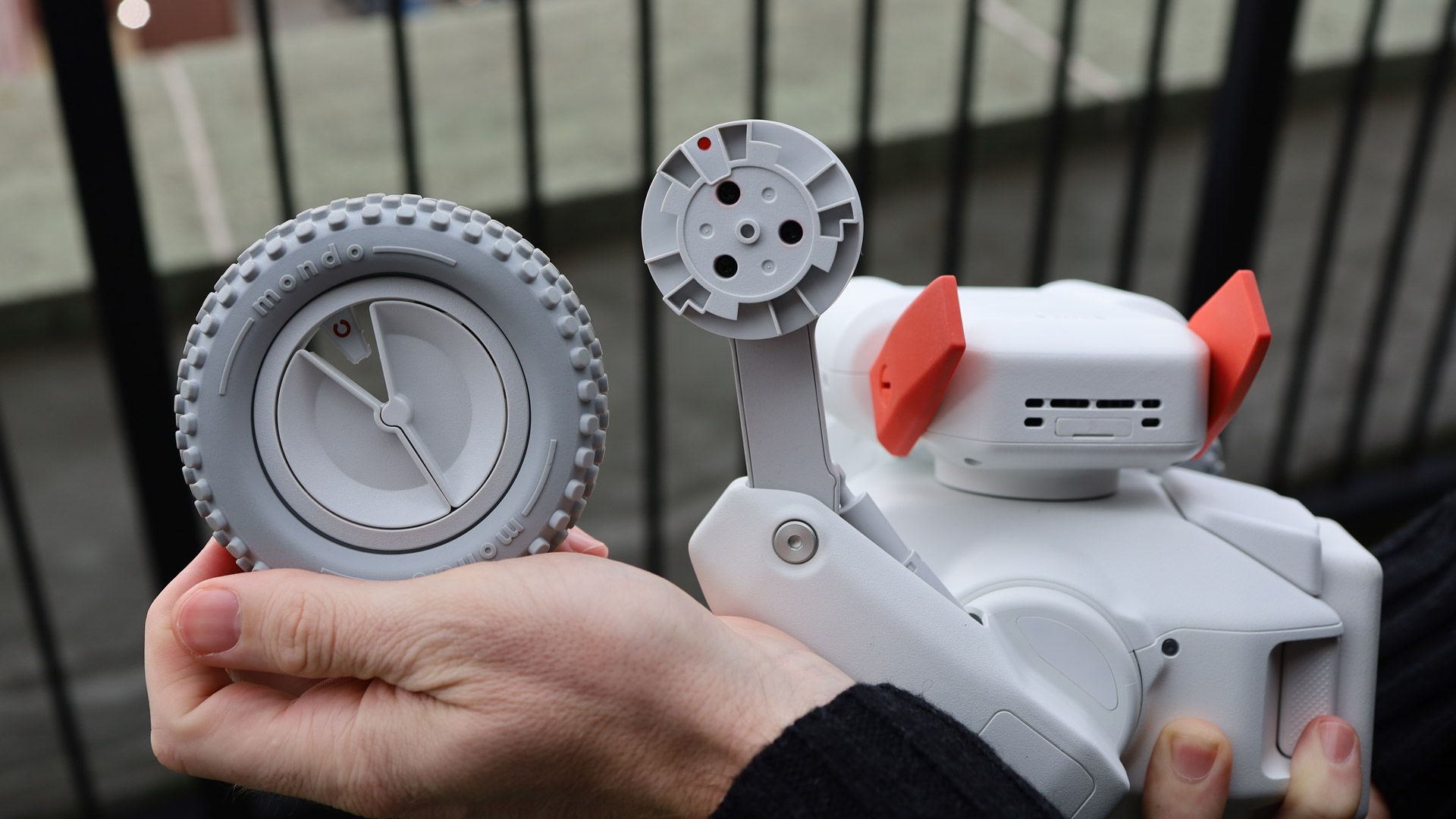
Beni ships with a pair of relatively smooth rubber wheels, but you can buy the combo pack and get some accessories, including knobbier off-road wheels that are better equipped to handle dirt roads and hills.
One of the things I like about Beni is that it's not like a robot kit. The wheels, for instance, are easy to pop on and off, and nothing about Beni looks like it was made from an old Erector Set.
And, for better or worse, there is no dev kit. This is in contrast to the equally cute Pollen Robotics Microduck, another white and orange bipedal robot that can hang out with you (and use roller skates), but it's a bit more DIY than SMF (So Much Fun). Where Beni looks polished, the $399 Microduck looks a little more hand-built.
Beni can hear and follow some simple commands. The animations — a head turn here, a shake there — help it look like it's actually listening to you.
(Image credit: Lance Ulanoff / Future)
Beni's innate adorability might help overcome the obvious privacy concerns. After all, the robot is no taller than an average chihuahua, and its camera is at ground level. To film you as it goes, Beni will be looking up. This might make some people around you uncomfortable.
Maybe keep Beni to your solitary walks or runs, or make sure everyone around you knows that those cute Beni eyes are an indication that it might be filming.
I picked Beni up and found it surprisingly hefty, about the weight of an overfed puppy. It's cute to watch but not at all cuddly to hold. In fact, company execs told me that while there are lots of warnings about picking up Beni, the robot has no way of knowing if your fingers gets caught in, say, one of the joints. It might be best to keep Beni away from small children.
All this capability, power, and cuteness comes at a price. Beni starts at $799 (we've asked for international pricing) and starts shipping in October. It's not the ultimate robot, but Beni has the potential to captivate on looks and capability alone.